How to Live Stream Squash From Your Phone | Cam One

Updated: Apr 30
Squash is one of the fastest, most explosive sports on the planet. The problem is, most of the time the only people who see it are the ones standing behind the glass. That is a problem for clubs trying to grow membership, for sponsors looking for exposure, and for parents and supporters who cannot make it to the venue.
The good news is you can fix it with a single Android phone.
No camera crew. No expensive hardware. Just your phone, a tripod, and a few minutes of setup. This guide walks you through how to live stream squash using Cam One, step by step.
Why squash is well suited to phone streaming
Squash is one of the easiest sports to stream from a phone. The court is compact and enclosed, lighting is consistent, and the action stays within a fixed space. Unlike field sports where you need to follow play across a large area, a single wide shot from behind the back wall captures the entire court cleanly.
Squash New Zealand is already using Cam One to power their Squash TV coverage, including the Head Pro Tour. In their own words, the partnership has helped them "deliver a more seamless and user-friendly broadcast experience, making it easier than ever for people to watch, follow, and connect with the game."
If it works at national tour level, it works at your club.

What you need to live stream squash from your phone
Phone: Any Android phone running Android 10 or newer. A newer phone with a decent camera will give you a sharper picture, but most modern Android devices handle HD streaming without issues.
Tripod: A tripod to hold your phone steady. Because you are locking off a single wide shot behind the back wall (no panning or tilting), you do not need to over-invest here. Any stable tripod that fits your phone will do the job.
Phone holder: A sturdy metal holder if possible. Plastic ones can flex and cause wobble. The SmallRig Universal Phone Cage is a solid option.
Power: Mains power or a large power bank. Streaming drains battery fast. Do not rely on battery alone for anything longer than a short match.
Internet: You need at least 10 Mbps upload speed. Most squash clubs have Wi-Fi, but test the speed at the exact spot where your tripod will be. Signal strength can drop between the clubrooms and the court. If the venue Wi-Fi is not good enough, 4G or 5G mobile data usually works well in urban areas.
Data usage: 1080p uses roughly 3-5 GB per hour.
eSIM tip: Dedicated data plan for streaming without swapping your main SIM.
Struggling with a weak connection?
Try Speedify. It bonds your WiFi and mobile data together into one more reliable connection. If one drops, the other picks up. Useful for venues where no single connection is strong enough on its own.
Where to put the camera
To live stream squash from your phone the best position is behind the back wall, centred on the court, with a wide shot that captures the full playing area.
If there is a viewing gallery or elevated seating above the back wall, use it. Height helps. You get a clearer view of the court markings and less distortion from the glass.
If there is no elevated option, ground level centred works well. Try a few heights on your tripod to find the best angle before the match starts.
A few things to watch for: make sure you are not blocking an exit or walkway, check for reflections off the glass that might wash out part of the picture, and avoid shooting into overhead lights if you can.
Clean your camera lens before you start. Fingerprints and smudges show up more than you would expect.
Setting up Cam One
Open Cam One and select "Create a new live stream."
Step 1: Choose squash as your sport and enter the match details (players/teams scoring).
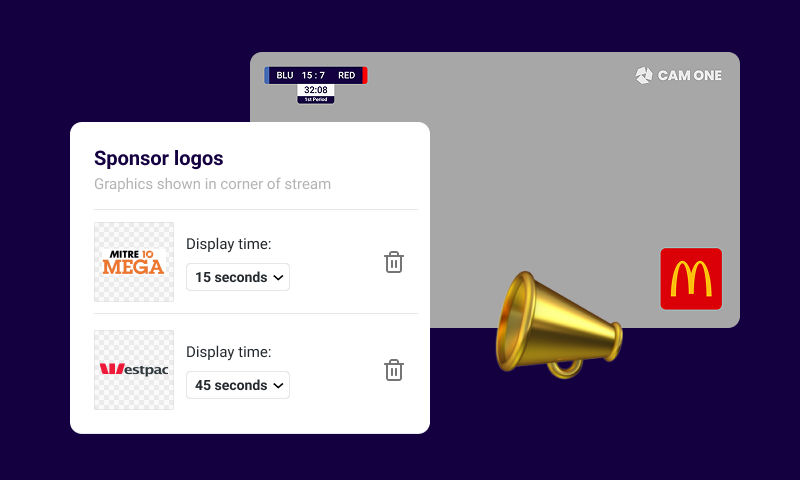
Step 2: Add your branding. On the Pro tier, you can add up to three sponsor logos that rotate on screen during the stream. You choose the display time for each logo (15, 30, 45, or 60 seconds) before it cycles to the next. You can also add up to three banner messages that scroll across the bottom of the stream, and up to three full-screen graphics that can be triggered at any time during the broadcast.
The full-screen graphics are where it gets interesting. You can design these as sponsor splash pages and display them before the match, during breaks, and after the final point. Squash New Zealand does this exceptionally well on their Head Pro Tour broadcasts. Here’s an example from Squash TV on how a professional squash stream complete with branded hold screens can look. https://www.youtube.com/watch?v=1AOVGaZ7Nms
On the Pro tier, you can also hide the Cam One watermark for a completely clean, branded look.
For organisations that need more, the Pro+ enterprise tier (available on application) unlocks additional logo slots, extra full-screen graphics, and the ability to add a custom watermark.
For a detailed walkthrough of adding logos, check our guide on sponsor logos.
Step 3: Choose your stream destination. You can stream to YouTube, Facebook, or any RTMPS destination. If you just want to record without going live, select "Save to device only."
Step 4: Confirm the details and you are ready to go.

Scoring
Cam One includes a built-in scoreboard overlay for squash. You can update it directly from the streaming device, or use remote scoring from a second phone or tablet.
Remote scoring is ideal for squash because the camera operator can stay focused on the stream while someone else handles the score. This is especially useful at club nights and interclub events where you might have a parent, team manager, committee member or even the match officials helping out.
The scoreboard updates live on the stream in real time.
During the match
Keep the shot locked and steady. Squash is fast, but because the court is small, a good wide shot captures everything without needing to follow the ball.
Do not use digital zoom. It makes the picture blurry and you will lose the wide view. Stick with your locked wide shot.
The microphone picks up everything, which is part of the appeal with squash. Viewers can hear the ball, the movement, the crowd. Just be mindful of what you and the spectators say near the phone.
If background music is playing through a venue PA, mute your audio during breaks. YouTube can flag or mute streams that pick up copyrighted music.
If something goes wrong
If the stream drops, do not panic. Close other apps on your phone, check your internet connection has not switched between Wi-Fi and mobile data, restart Cam One, and go live again. Most drop-outs are caused by the network, not the app.
If the phone overheats (common during longer sessions), make sure you have removed the case, moved the phone out of direct sunlight if possible, and closed all background apps. Let it cool for a minute if it shuts down, then restart.
Why this matters for your club
Streaming a squash match takes one person, one phone, and about five minutes of setup. In return, your club gets content to share, proof of activity for sponsors, footage players can review, and a way for supporters to watch when they cannot be there in person.
Squash New Zealand sees this as part of a bigger picture. As they put it, growing awareness of the sport and making it more accessible to players, fans, and future participants starts with showing up digitally. Live streaming is the simplest way to do that.
If your club or region is ready to start, the setup is the same one Squash NZ uses for the Head Pro Tour.
FAQ
Q: How much data does a squash stream use?
A: At 1080p, expect to use around 2.5 to 3 GB per hour. A typical best-of-five match will use roughly 3 to 4 GB depending on length. If you are on a mobile data plan, make sure you have enough room before you start.
Q: Can I stream multiple courts at the same time?
A: Yes. Each court needs its own phone running Cam One, its own tripod, and its own internet connection. Each device streams independently to its own destination (for example, separate YouTube events for Court 1 and Court 2). Squash New Zealand does exactly this on the Head Pro Tour, running multiple courts simultaneously.
Q: Do I need a separate subscription for each court?
A: Each device running Cam One needs its own subscription if you want Pro features (sponsor logos, full-screen graphics, watermark removal). If you are streaming without Pro features, the free tier works on as many devices as you need..
Q: What if my club's Wi-Fi is not fast enough?
A: You need at least 10 Mbps upload speed at the spot where the camera will be. If your club Wi-Fi does not deliver that, 4G or 5G mobile data is a reliable alternative in most urban areas. You can also ask your telco about a portable Wi-Fi device. Read our full connectivity guide for more options.
Q: Can I add different sponsors for different matches?
A: Yes. You set up logos, banners, and full-screen graphics before each stream. You can change the sponsors for every match if you need to. This is useful if different sponsors are attached to different competitions or grades.
Q: How do I show sponsors what they got from a stream?
A: After the event, pull the viewer numbers from YouTube or Facebook (both provide this for free). You can share total views, average watch time, peak concurrent viewers, and geographic reach. Screenshot the sponsor logo on the stream or replay as visual proof. Most grassroots sponsorships provide zero data, so even basic numbers stand out.
Q: Can I use the full-screen graphics for non-sponsor content?
A: Absolutely. Clubs use them for event schedules, upcoming fixtures, club announcements, draw updates, and welcome screens. You get up to three full-screen graphics per stream on the Pro tier, and you can trigger them at any point during the broadcast.
Q: Will it look professional enough for our national body or district?
A: Squash New Zealand uses Cam One for the Head Pro Tour. The combination of a clean wide shot, scoreboard overlay, sponsor logos, and branded full-screen graphics produces a result that looks polished and professional. At club and district level, the same setup delivers the same quality.
Q: Can I record without going live?
A: Yes. Select "Save to device only" when setting up your stream. The recording saves to your phone's gallery with all overlays, scoreboards, and graphics included. This is useful for clubs that want match footage for coaching, social media clips, or sharing later when there is no reliable internet at the venue.
Q: Where does the replay end up?
A: If you stream to YouTube, the replay stays on your YouTube channel automatically. If you stream to Facebook, it stays on your page for 30 days. As of February 19, 2025, Facebook Live videos are automatically deleted 30 days after they are published, replacing the previous policy of keeping them indefinitely. During this 30-day window, users can watch replays, download, or download their live videos before they are permanently removed from Meta servers. If you record to device, the file is saved to your phone and you can upload or share it wherever you like.
Q: Can viewers see the ball clearly from a phone camera?
A: On a well-lit court with a clean wide shot, viewers can follow the rally and see the ball clearly enough to enjoy the match. It will not look like a PSA World Tour multi-camera broadcast, but it is more than good enough for club, interclub, and regional events. The court lighting and a clean camera lens make the biggest difference. Cam One streams upto 1080HD 60fps better quality than many larger streaming cameras and set ups.
CTA: One phone. One tripod. One wide shot. That is all it takes to put your club on screen. Squash New Zealand is already doing it. Your club can too. Download Cam One and stream your next match.
Download Cam One free from Google Play. Set up your phone at
your next club night or tournament. Go live. Your
squash is already worth watching. Now make it visible.


Comments