How to Add Sponsor Logos to Your LiveStream

Your sponsors are paying for visibility. A live stream is the best way to deliver it.
A banner behind a goalpost gets seen by the fifty people at the ground. That same logo on a live stream gets seen by hundreds or thousands. It is measurable, shareable, and stays online as a replay after the event.
Cam One Pro lets you add up to three sponsor logos to any live stream. This guide shows you how.
Why sponsor logos on a live stream matter
Most sports clubs fund themselves through sponsorship. The pitch is usually "your logo on our jersey" or "your banner at our ground." That works, but the exposure is limited to people at the venue.
A live stream changes the equation. Sponsors get their logo on screen for the entire broadcast. Viewers see it worldwide. The replay keeps it visible after the event. That is a stronger sponsorship proposition.
What you need
The Cam One app on an Android phone.
A Cam One Pro subscription.
Sponsor logos as image files downloaded to your phone gallery (PNG with transparent background works best).
Step 1: Prepare your logo files
Format:
PNG with transparent background. Logo sits cleanly on the stream without a coloured box.
Resolution:
At least 500 x 500 pixels.
Number:
Up to three per stream. If you have more sponsors, rotate across events.
Ask your sponsors. Most have a logo pack ready. Ask for PNG on transparent background.
Step 2: Upload logos in the app
Go to the Customise Graphics page (Step 2 of 4).
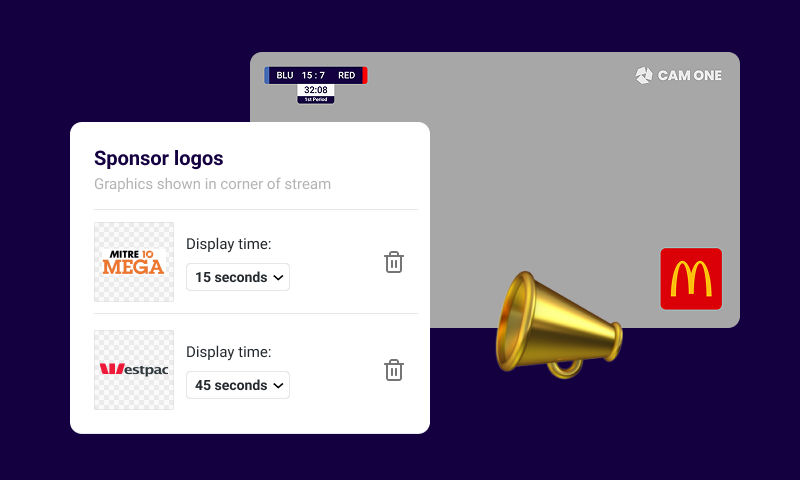
Tap to add a sponsor logo.
Select the image from your phone. Sometimes they will appear in a downloads folder in the Gallery.
Adjust the Display Time for each logo: 15, 30, 45, and 60 second options.
Repeat for second and third if needed.
The app shows how they will appear in the stream preview.
Step 3: Check the preview
Are the logos clear and readable? Adjust before going live.
Step 4: Go live
Logos appear from the moment you start broadcasting. They display on every platform (YouTube, Facebook, RTMPS) and appear on the replay.
Step 5: Update Presentation.
Select 'Settings' on the bottom slider. Here you can remove, adjust timings, and add new or swap out sponsor logos while you are live streaming.
Step 6: Show your sponsors the results
After the event, send your sponsor: a screenshot of their logo on the stream, the number of viewers, and a link to the replay. Turns "we put your banner up" into "your logo was seen by 400 people live and the replay has had 1,200 views."
Tips
Transparent backgrounds look professional
Logo floating on stream looks like TV. Logo in a white box looks like PowerPoint.
Do not overcrowd.
Three logos is the maximum for a reason.
Use banner messaging for extra value
Call out sponsors by name at key moments or consider adding a full page sponsor splash page using the Hold Page (full screen graphics) settings.
FAQ
Q: Can I add sponsor logos to a live stream from my phone?
A: Yes. Cam One Pro lets you add up to three sponsor logos that display throughout the broadcast.
Q: What format should logos be?
A: PNG with transparent background works best. At least 500 x 500 pixels.
Q: Do logos appear on replays?
A: Yes. They are part of the broadcast and appear in the replay exactly as during the live stream.
Add another expandable item
Download Cam One free from Google Play. Upgrade to Pro. Add your
sponsor logos and go live. Your sponsors are investing in your club. Show
them what that investment looks like on a live stream.


Comments